Directory and worktree jumps
Press Ctrl-B or run zz to search directory history. Press Alt-W (Option-W on macOS) or run zw to search registered Git worktrees. Both pickers change the current shell directory after selection. Cancel with Escape or Ctrl-C; the directory and any unfinished command remain intact.
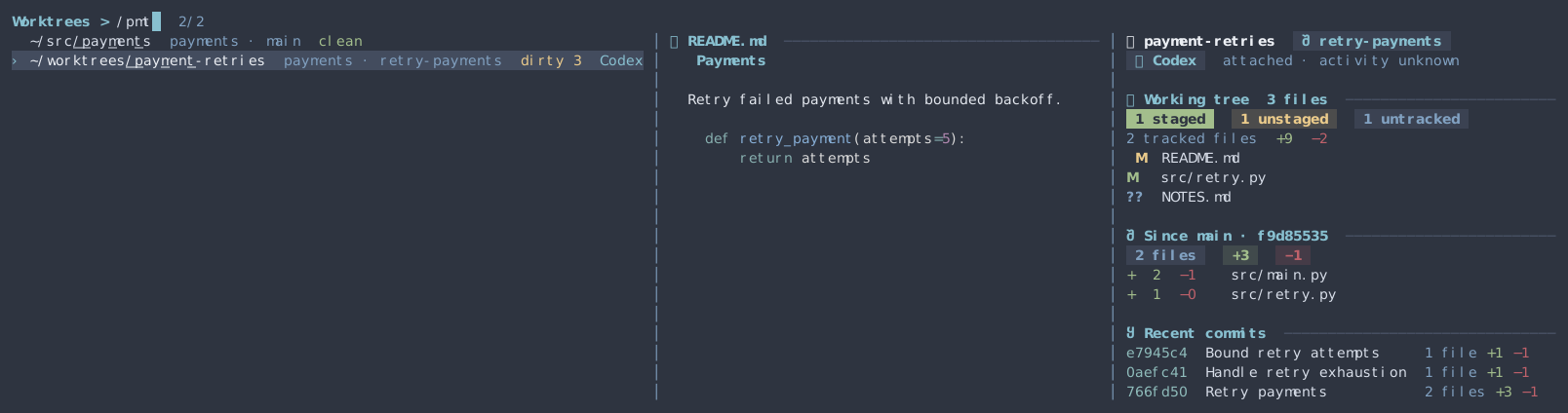
Inside a repository, zw lists that repository’s worktrees. Outside a repository, it finds repositories immediately under the current directory and lists their worktrees, including worktrees stored elsewhere. Rows show the repository and branch, identify detached heads and locked worktrees, and omit missing directories. Discovery is read-only.
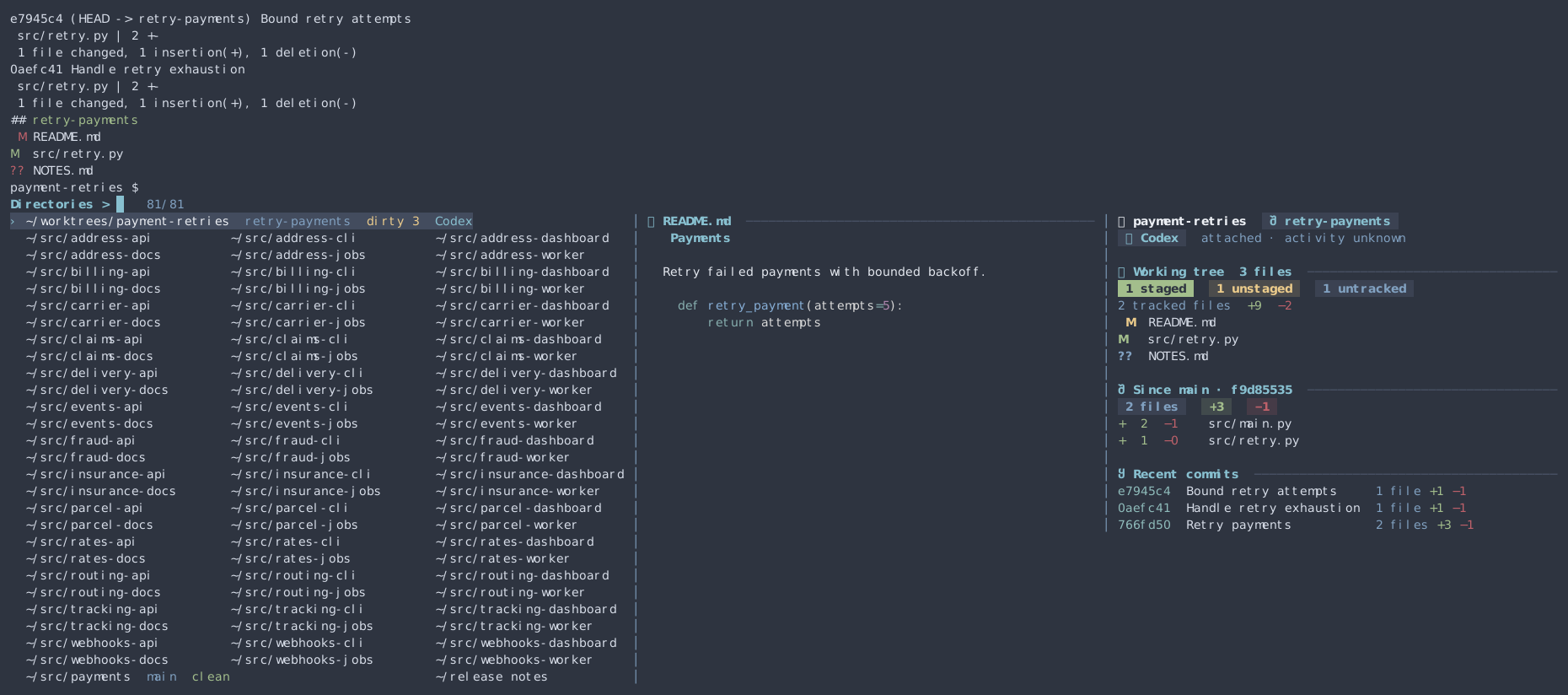
The Charmed picker opens inline in the shell. Matches run left to right in rank order. Column spacing comes from the paths on screen, and a long or annotated entry spans extra columns in its own row. A handful of short matches can fit on a single line. As you filter or resize, the picker releases unused rows and keeps the highlighted path selected while it still matches. Repository roots show the branch, working-tree status and attached terminal agents. Type Codex dirty to search those details as they arrive. Underlines mark the characters that matched in each path, branch, status, or agent name. The background marks the current selection.
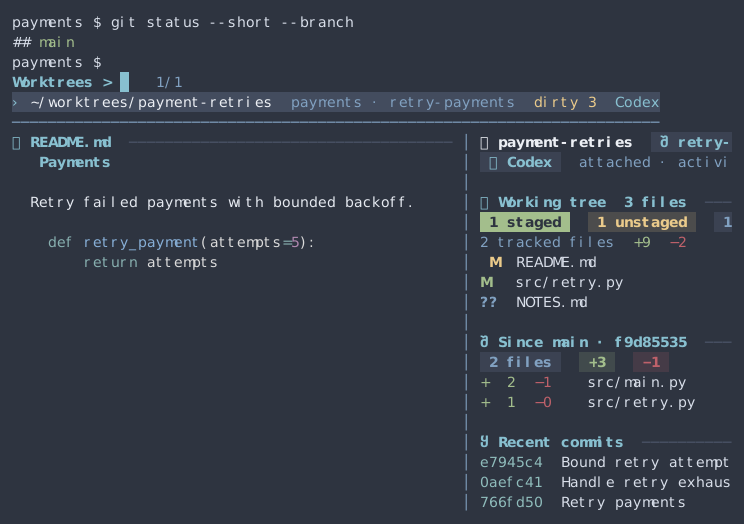
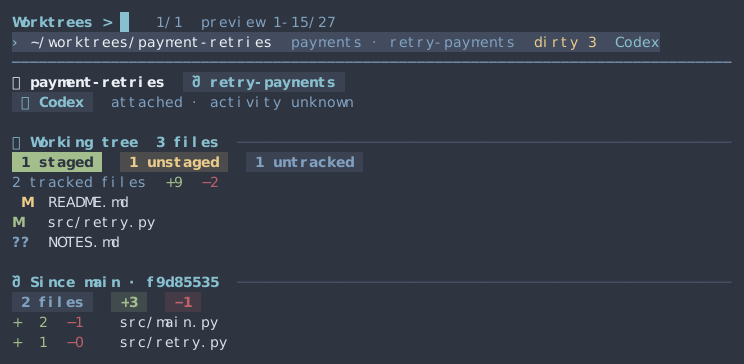
A wide terminal puts the matches, the selected folder’s README, and Git activity in three columns. The Git column includes staged, unstaged, and untracked files, changes since the merge base, and up to five recent branch commits with file and line counts. Filtering to a single worktree keeps both preview columns visible. In narrower terminals the sections share a scrollable preview beside or below the results. Ctrl-J and Ctrl-K scroll the preview. When two columns are visible, a short column stays in view as you scroll the longer one.
Outside Git, the preview shows directories, files, and symlinks immediately inside the selected folder, alongside its README when present. Inside a repository, selecting a subdirectory shows its own files and README alongside the repository’s Git activity. A genuinely empty folder shows its path and Empty directory. Ctrl-/ toggles the preview. Markdown uses the shared Glow theme, with bat and plain text as fallbacks. README input is limited to 64 KiB.
The comparison base uses the local origin/HEAD reference when available, otherwise local main or master; no fetch is performed. The preview names the actual reference and merge-base commit. Uncommitted changes and committed branch changes remain separate; untracked contents are not included in line totals. If a base or statistic cannot be read, it is shown as unavailable.
Agent presence is a snapshot of live tmux/Zellij panes taken when the picker opens, matched to the selected Git worktree. A running agent client establishes attachment; it does not establish an active turn. The current terminal hooks do not expose reliable activity for each agent, so activity remains unknown. Codex desktop chats and agents outside these terminal sessions are outside this observation scope.
| Key | Action |
|---|---|
| Up / Down | Move to the nearest column in the row above or below |
| Left / Right | Move between matches on the current row |
| Ctrl-P / Ctrl-N | Move to the previous or next match in rank order |
| Page Up / Page Down | Move a page of rows |
| Enter | Jump to the highlighted directory |
| Ctrl-Space | Keep only the current matches and start a fresh search |
| Ctrl-/ | Show or hide the preview |
| Ctrl-J / Ctrl-K | Scroll the preview |
| Escape / Ctrl-C | Cancel |
Run zz search terms or zw search terms to start with a query. Filtering uses fzf query syntax over the path label and available row details. If shortpath is available, labels shorten parent components while keeping the last two components readable; otherwise they use full paths with ~ for the home directory. Abbreviations are display labels only: selection always retains the original path. History is ordered by the score from _z -l, with shorter paths first on ties. Worktrees retain Git’s ordering within each repository.
The shell set builds the native UI during make install. To build or update just the picker in an existing checkout, run make directory-picker with Go available. Both commands use Python 3. The native picker uses the fzf matching algorithms directly. A checkout without the native binary uses the previous interactive fzf picker.
Run make test-directory-picker for shell-jump and Git-discovery checks. After building the UI, run uv run --script scripts/test-directory-picker-native.py to exercise the actual Ctrl-B and Alt-W bindings and capture the following terminal views.